The idea
Imagine you run a small café and keep track of your menu in a notebook: each product, its price, and how many you have in stock. One day you want to know how much all that stock is worth. With a notebook you'd grab a calculator, multiply price by quantity for every line, write the answers down, and add them up. Then the price of coffee goes up, and you have to do half of it again.
A spreadsheet is that notebook, but it does the maths for you. It's a grid of boxes, and each box can hold a number, some text, or a formula, which is a small calculation that uses the values in other boxes. When you change one number, every formula that depends on it updates by itself. That's the whole reason Excel ends up running the budgets, price lists, stock counts and sales reports of almost every office in the world.
Think of a spreadsheet as a very obedient calculator with a memory. Every box remembers either a value you typed or the recipe ("price times quantity") for working one out, and it redoes the recipe whenever one of the ingredients changes.
Workbook, worksheet, cell
Excel has a few words for the different levels of a file, and you'll hear them all the time, so it helps to get them straight first.
- A workbook is one Excel file, like
report.xlsx. It's what you save, email and open. - A workbook holds one or more worksheets (usually just called sheets). They show up as tabs along the bottom:
Sheet1,Sheet2and so on. A common setup is one sheet per month, or one for raw data and another for the summary. - A sheet is a big grid of cells. The columns are named with letters (A, B, C ... Z, then AA, AB ...) and the rows are numbered (1, 2, 3 ...).
Every cell has an address, which is its column letter followed by its row number. The cell in column B, row 3 is B3. This matters more than it looks: formulas work by pointing at addresses, so being able to read "B3" quickly is something you'll use in every single module.
When you open Excel and choose Blank workbook, this is what you're looking at:
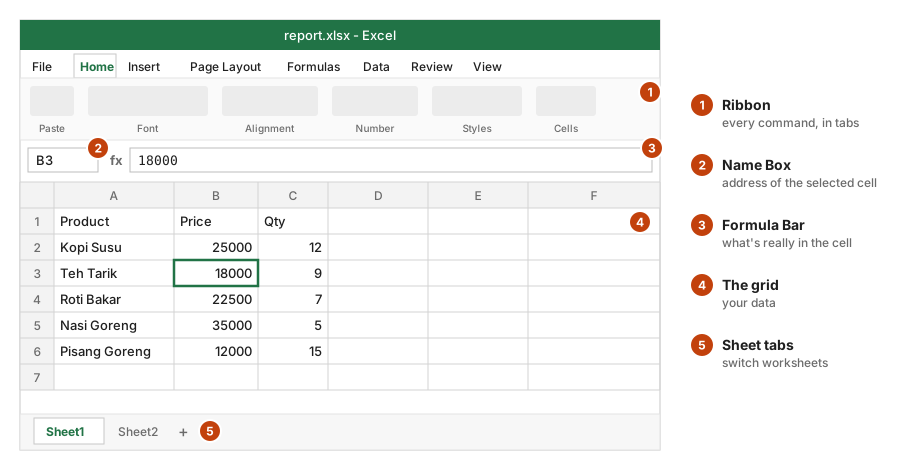
| Part of the window | What it's for |
|---|---|
| Ribbon (Home, Insert, Formulas, Data...) | Every command, grouped into tabs |
| Name Box (left, above the grid) | Shows the address of the selected cell; type an address there to jump to it |
| Formula Bar (next to the Name Box, marked fx) | Shows what's really inside the selected cell |
| The grid | Your data |
| Sheet tabs (bottom) | Switch between worksheets; the + adds one |
Typing values
To put something in a cell, click it, type, and press Enter to confirm and move down, or Tab to confirm and move right. Tab is handy when you're filling in a row from left to right, like a new product with its name, price and quantity.
While you type, Excel quietly decides what kind of value it is, and that decision affects what you can do with it later:
- Numbers (
25000,3.5) line up on the right side of the cell. Excel can add, multiply and compare them. - Text (
Kopi Susu) lines up on the left. Excel won't do maths with it. - Dates and times (
2026-03-16,08:30) look like text, but Excel stores them as numbers behind the scenes. That's why you can later subtract one date from another to get the number of days between them.
The left/right alignment is a useful early warning. If you type a price and it sits on the left, Excel has read it as text (often because of an extra space or a currency symbol), and your totals won't include it.
Each module in this course comes with a small example sheet, shown as a grid like the one below. The highlighted cells are the ones the example fills in. Here the café starts selling iced tea, so it goes in as a new product on row 7:
A7: Es Teh
B7: 8000
C7: 20
A7: Es Teh
B7: 8000
C7: 20In Excel you'd click A7, type Es Teh and press Tab, then type 8000, press Tab, and type 20. You can click any cell in the grid to see its address and contents in the bar above it, just like Excel's Name Box and Formula Bar. The Show formulas button switches every formula cell to show its formula instead of its result, which is the same as Formulas → Show Formulas (Ctrl + \`) in Excel.
Syntax: your first formula
Back to the café question: how much is the coffee stock worth? That's price times quantity, and you want Excel to work it out. A formula always starts with an equals sign =. The = is how you tell Excel "this isn't something to store as it is, it's something to calculate". Without it, Excel treats whatever you type as plain text.
D1: Stock value
D2: =B2*C2
D3: B3*C3
D1: Stock value
D2: 300000
D3: B3*C3D2 holds a recipe: "take the value in B2, multiply it by the value in C2". Kopi Susu costs 25000 and there are 12 in stock, so D2 shows 300000. D3 is missing its =, so Excel just stores the characters B3*C3 as text and doesn't calculate anything. Forgetting the = is one of the most common beginner mistakes, and now you know what it looks like.
A formula is built from a few kinds of pieces:
| Piece | Example | Meaning |
|---|---|---|
| References | B2, C2 | "the value in that cell" |
| Operators | + - * / | add, subtract, multiply, divide |
| Constants | 2, 0.11 | fixed numbers |
| Functions | SUM(B2:B6) | ready-made calculations (module 5) |
Notice that the cell shows the result (300000), while the formula bar shows the formula (=B2*C2). That's why the formula bar is the first place to look when a number seems wrong: the cell only tells you the answer, but the formula bar tells you how Excel got there.
Ranges
A lot of the time you don't want to work with one cell, but with a whole group of them, like all five prices. A range is a rectangle of cells. You write it as its top-left corner and its bottom-right corner, with a colon between them:
| Range | Cells it covers |
|---|---|
B2:B6 | five cells down column B (the prices) |
A1:C1 | the header row, across three columns |
B2:C6 | a block of 2 columns × 5 rows = 10 cells |
A:A | the whole of column A |
Ranges are how you hand a lot of cells to a function in one go. Without them, adding up five prices would mean writing =B2+B3+B4+B5+B6, and adding up five hundred would be hopeless. You'll meet SUM properly in module 5, but here's a taste:
# Add up the five prices
E1: =SUM(B2:B6)
E1: 112500To select a range in Excel, drag across it with the mouse, or click the first cell and Shift-click the last one.
Moving around quickly
You can do everything with the mouse, but once your sheets get bigger than a screen, the keyboard is much faster. These are the shortcuts people actually use every day:
| Keys | What they do |
|---|---|
| Enter / Tab | Confirm and move down / right |
| Arrow keys | Move one cell |
| Ctrl + Arrow (⌘ + Arrow on Mac) | Jump to the edge of the data |
| Ctrl + Shift + Arrow | Select to the edge of the data |
| F2 | Edit the selected cell |
| Esc | Cancel what you're typing |
| Ctrl + Home | Go to A1 |
Keep each table tidy: one header row, one kind of value per column, and no empty rows in the middle. It seems fussy now, but every tool you'll learn later (sorting, filters, lookups, PivotTables) treats an empty row as "the table ends here", so a tidy rectangle saves you a lot of strange results.
Recap
- A workbook is a file. It holds worksheets, and each worksheet is a grid of cells.
- A cell's address is its column letter plus its row number, like
B3. - Text lines up on the left and numbers on the right. Dates and times are numbers underneath.
- Formulas start with
=. The cell shows the result, and the formula bar shows the formula. - A range is a rectangle written
top-left:bottom-right, likeB2:C6.