The idea
In module 1 you wrote one formula, =B2*C2, to work out the stock value of one product. That's fine for a café with five items. But a real shop might have three hundred products, and typing the same formula three hundred times, changing the row number each time, would take all afternoon and you'd almost certainly make a typo somewhere along the way.
So the usual way to work in Excel is to write a formula once, in the first row, and then fill it down to all the others. Excel adjusts each copy so that it uses its own row's numbers.
The other thing about real sheets is that they keep changing. A new product arrives and needs a row in the middle of the list. A column turns out to be useless and gets deleted. Someone moves the prices to a different spot. Excel tries hard to keep your formulas pointing at the right cells through all of that, and this module shows you what it's doing behind the scenes, plus the one case where it can't help you.
The fill handle
Select a cell and look closely at its bottom-right corner. There's a tiny square there called the fill handle. If you drag it down (or to the right), Excel copies the cell into every cell you drag over.
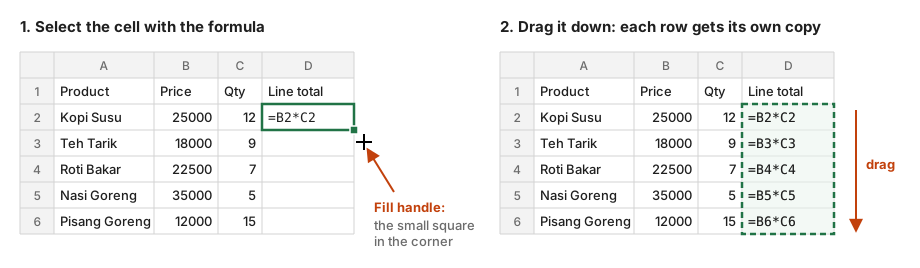
When the cell holds plain text or a number, it just gets copied. When it holds a formula, something more useful happens: Excel doesn't copy it letter for letter, it shifts the references along with the move. =B2*C2 in row 2 becomes =B3*C3 in row 3, =B4*C4 in row 4, and so on. That way every row multiplies its own price by its own quantity, which is exactly what you wanted.
In the sheet below, D2 holds =B2*C2 and it has been filled down to D6:
D1: Line total
D2:D6: =B2*C2
D1: Line total
D2: 300000
D3: 162000
D4: 157500
D5: 175000
D6: 180000Click D4 and the formula bar shows =B4*C4. You only wrote the formula for row 2, but the fill moved both references down two rows for row 4. If you press Show formulas, you can see every row has its own version.
Instead of dragging, try double-clicking the fill handle. Excel fills down for as long as the column next to it has data, so a 3,000-row table gets filled in one click. You can also use Ctrl + D, which fills the selected range down from its top cell, and Ctrl + R, which fills to the right.
Series
If you fill a single number, Excel just copies it: drag a 1 down and you get a column of ones. But if you give it a pattern to follow, it continues the pattern for you. This saves a lot of typing when you're setting up things like dates, weekdays or row numbers:
| You type | Then drag | Excel fills |
|---|---|---|
1, 2 (two cells selected) | down | 3, 4, 5 ... |
Mon | down | Tue, Wed, Thu ... |
Jan | right | Feb, Mar, Apr ... |
2026-03-16 | down | 2026-03-17, 2026-03-18 ... |
Week 1 | down | Week 2, Week 3 ... |
You can get the same result with a formula, which has the advantage of saying the rule out loud. Here column E numbers the products, and the rule is "each number is the one above it plus 1":
E1: No
E2: 1
E3:E6: =E2+1
E1: No
E2: 1
E3: 2
E4: 3
E5: 4
E6: 5E3 looks at E2 and adds 1. When it's filled down, E4 looks at E3, E5 looks at E4, and so on, so the numbering keeps going by itself.
The fill options button and Flash Fill
After you fill, a small Auto Fill Options button appears at the corner of the filled range. It's there for when Excel guessed wrong about what you wanted. Maybe you wanted the same value copied into every cell, but Excel started counting instead. Clicking the button lets you switch:
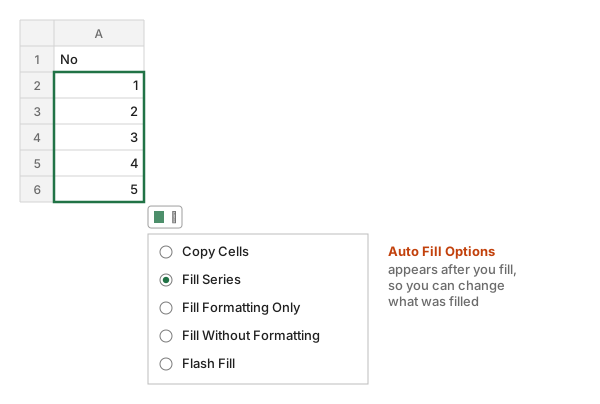
| Option | Fills |
|---|---|
| Copy Cells | the same value in every cell, no series |
| Fill Series | the continuing pattern (the default when you selected two numbers) |
| Fill Formatting Only | the colours and borders, not the contents |
| Fill Without Formatting | the contents, keeping each cell's own look |
Flash Fill (Data → Flash Fill, or Ctrl + E) is a relative of the fill handle that works on text. Say you have a column of full names and you need just the first names. Next to the first full name, type that person's first name by hand, press Ctrl + E, and Excel looks at what you did and guesses the pattern for the rest of the column. It's great for quick, one-off clean-ups.
There's one catch: Flash Fill types plain values, not formulas. If a name in the original column changes later, the first name next to it stays the same. Module 8 shows text formulas that do keep up with changes.
Moving cells
Sometimes you need to rearrange a sheet, like moving the prices to a different column. To move cells, select them and either drag the border of the selection to the new place (the edge of the box, not the fill handle), or cut with Ctrl + X and paste with Ctrl + V.
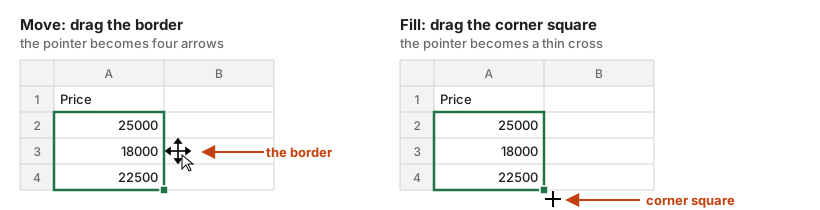
The good news is that moving is safe for formulas. If D2 says =B2*C2 and you move the price from B2 over to H2, Excel rewrites the formula as =H2*C2. It understands that you moved the data, not deleted it, so it follows the data to its new home.
Copying (Ctrl + C, then Ctrl + V) behaves differently, and this catches a lot of people out. A copied formula shifts its references by however far you pasted it, exactly like the fill handle does. Copy =B2*C2 from D2 and paste it into D5, and the copy says =B5*C5. Usually that's what you want, but if you expected an identical copy, it can be confusing the first time. (Module 4 shows how to stop a reference from shifting.)
Adding rows and columns
A new product arrives and you want it in the middle of the list, not at the bottom. Right-click a row number and choose Insert, and everything from that row down gets pushed one row lower to make space. Right-clicking a column letter does the same for columns.
Formulas adjust to this too. Say there's a total below the table, =SUM(C2:C6). If you insert a row somewhere inside that range, the total becomes =SUM(C2:C7), so the new row is counted without you touching the formula.
This only works if you insert inside the range the formula covers. If you add a row directly below the last one (outside C2:C6), Excel has no way of knowing you meant it to be part of the total, so it isn't included. Excel Tables (module 11) fix this for good, because a table grows automatically when you add rows to it.
Deleting
"Delete" can mean two quite different things in Excel, and mixing them up causes a lot of confusion:
| Action | What happens |
|---|---|
| Select cells, press Delete | Clears the contents; the cells stay where they are |
| Right-click → Delete (rows, columns or cells) | Removes the cells; the rest of the sheet shifts up or left |
The first one is like erasing what's written on a page. The second is like tearing the page out.
Tearing out cells is where formulas can break. If a formula points at a cell and you remove that cell completely, the formula is left pointing at nothing. Excel can't follow the data this time, because the data is gone. So it replaces the lost reference with #REF!, and the result turns into the #REF! error:
# After column B is deleted, the formula has lost the cell it pointed at
F2: =#REF!*C2
F2: #REF!This is what =B2*C2 turns into if you delete column B. When you see #REF! in a sheet, it almost always means someone deleted a row or column that a formula needed. Undo the delete, or fix the formula so it points at the right cell again.
Undo and redo
The steps in this module are the ones most likely to go wrong, so it's worth knowing how to step back:
| Keys | Action |
|---|---|
| Ctrl + Z (⌘ + Z) | Undo the last change; press again to go further back |
| Ctrl + Y (⌘ + Y) | Redo what you just undid |
The Undo arrow in the top-left corner of Excel also has a small drop-down that lists your recent changes, so you can jump back several steps at once instead of pressing Ctrl + Z over and over.
Undo is your safety net. Deleted a column and now a dozen cells say #REF!? Press Ctrl + Z, check what the formulas needed, and delete more carefully the second time.
Recap
- Drag or double-click the fill handle to copy a cell down. Formulas shift their references as they go, so each row uses its own values.
- Give Excel a pattern (like
1, 2orMon) and it continues the series. - Moving cells follows the data. Copying shifts the references by however far you pasted.
- Inserting rows inside a range makes the formulas that use it grow to include them.
- Removing cells a formula needs produces
#REF!. Ctrl + Z undoes it.